
PRACTICAL GUIDE 03
Record answers and attendance without losing track
Turn an orange pending record into a useful classroom note: who responded, how many questions they answered, and which answers were correct, incorrect, partial, or ungraded.
01 Treat orange as a missing entry, not a negative result
A newly drawn name creates a pending record. Its recent-activity card is orange until you save a response status. A saved No response is a completed entry, so its card returns to the normal color. This distinction lets you tell the difference between a student who did not respond and a response you have not recorded yet.
The main Record response button has a separate attention cue: it becomes orange after a draw and returns to its original appearance after you open and leave the editor. Closing the editor without saving does not complete the history card. Check recent activity before ending the lesson if you want to find records you may have missed.
02 Choose a status that describes what happened
Use Responded / present when a student answers or acknowledges a roll call. Use No response when you called and received no response. Absent and Excused let you record those circumstances separately. Skipped / passed records a deliberate pass rather than treating it as an incorrect answer. These statuses are entered by you; the application does not listen to students or assess their speech.
For attendance alone, choose the status and leave all question counts at zero. Saving Absent does not uncheck the student from the draw roster. If they should be excluded from further draws, also change the inclusion checkbox. Keeping these actions separate avoids turning an attendance note into an unexpected roster change.
03 Count questions within a single classroom moment
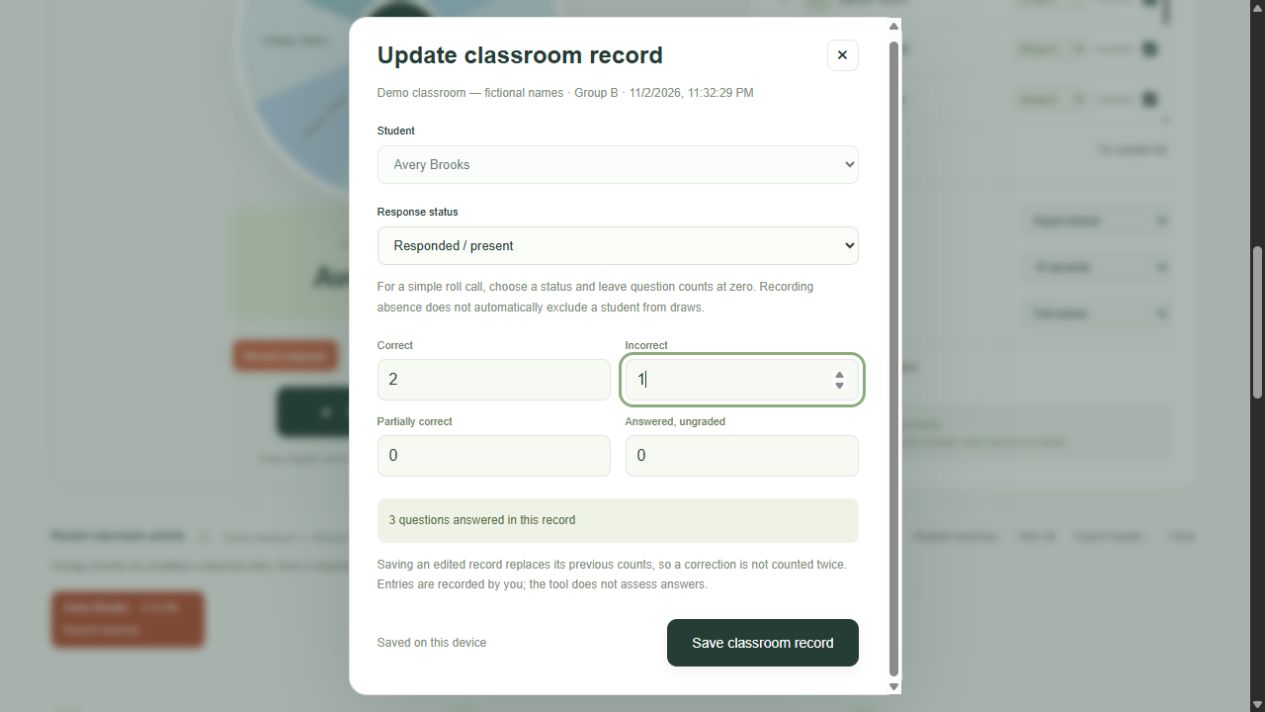
Suppose Jamie answers three questions: two correctly and one incorrectly. In that record choose Responded / present, enter 2 under Correct and 1 under Incorrect, and leave Partially correct and Answered, ungraded at zero. The total should say three questions answered. Save the record and confirm that its activity card is no longer orange.
Partial and ungraded are separate categories. Use Partial when you intentionally gave partial credit; use ungraded when an answer was offered but not assessed. Calling You adds these categories to calculate answered questions. It does not compute a standardized grade or decide whether a response deserves credit. Define your classroom conventions consistently before comparing totals.
04 Correct an entry without counting it twice
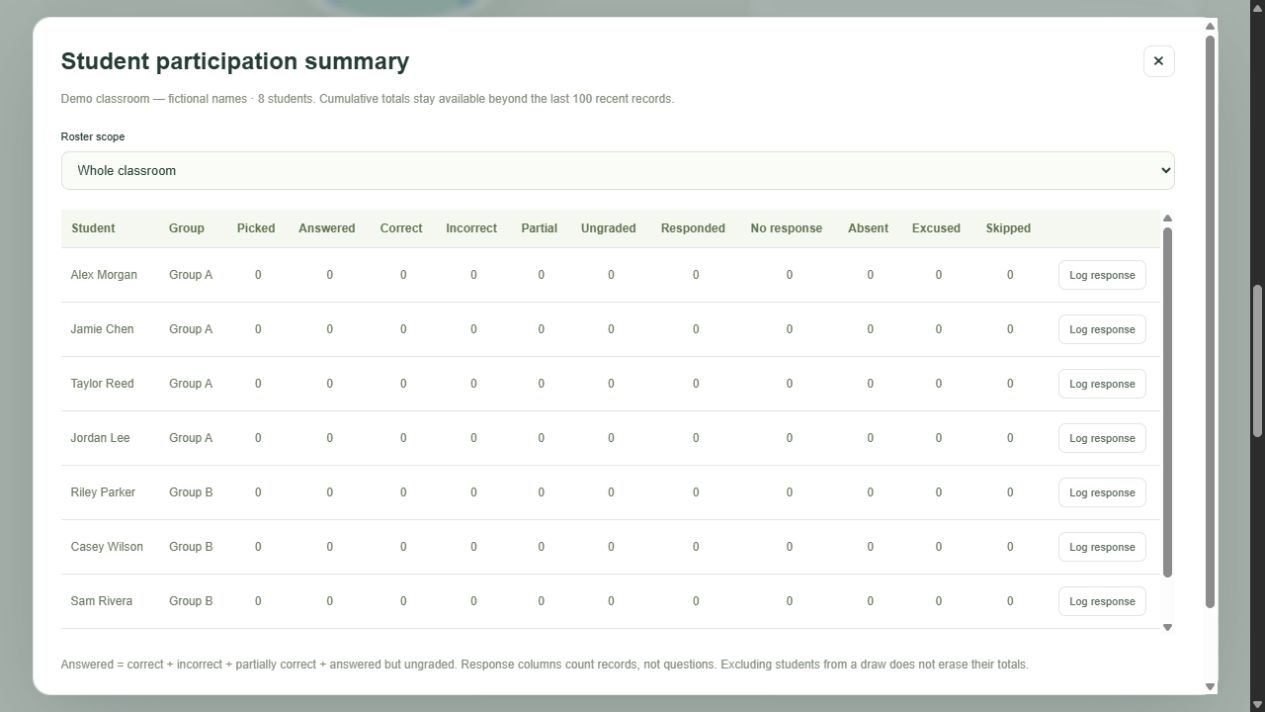
Open the existing activity card to edit a recent record. If you change 2 correct and 1 incorrect into 3 correct and 0 incorrect, saving replaces the old contribution to the student’s totals. It does not add another three questions on top. Check the summary after an important correction so you can see the resulting totals.
For a voluntary answer or a roll call without a random draw, choose Log response and select the student. This creates a response record without increasing their pick count or consuming their no-repeat turn. If you accidentally draw a person, Undo last pick reverses the latest pick and any associated response totals. Later roster changes or resets can clear undo availability.
05 Read summaries and exports in their proper context
Student summary separates questions from response events. Correct, incorrect, partial, and ungraded count questions. Responded, no response, absent, excused, and skipped count records. One responded record can contain three questions, so those columns should not be expected to match. Pick counts describe random selections and form a third, separate measure.
Use the roster-scope filter to inspect a group or the whole classroom, and export a CSV when you need a portable report. CSV exports follow your current name display setting. JSON backups include the full underlying names and data, even when the screen is masked. Review exports before sharing them and follow your organization’s retention rules.
Only the latest 100 activity records per classroom remain available for detailed editing. Cumulative totals can outlive those records. Clearing recent history keeps totals; resetting classroom response totals removes response totals and recent activity together. Export what you need before either operation. Avoid promising that a CSV of recent records will reconstruct every historical total once older events have been dropped.