
PRACTICAL GUIDE 04
Keep photos local and move your classroom safely
Use a school badge or student thumbnails without external image links, then make a full backup before switching a device, browser profile, or domain.
01 Understand where the workspace lives
Calling You stores classroom information in the browser on the workspace origin. IndexedDB is used when available, with a localStorage fallback when it can hold the data. This is convenient for a teacher using one device, but browser storage is not a cloud account. Clearing website data, losing a device, or leaving a private session can remove access to your work.
The public teacher-guide site and the classroom application are separate origins. Reading an article does not give that page access to the application’s browser database. Likewise, opening app.callingyou.net does not automatically bring over data from an earlier hosted address. Even on the same computer, different domains and browser profiles keep their own storage.
02 Choose a badge before collecting student photos
Open Photos, sound & animation and choose Customize school badge to set a shared image for people without a visible individual photo. You can use the original symbol instead. A school badge can make the list recognizable without needing a portrait for every student. Only use images you have permission to use.
Click a student’s avatar to edit their name, fixed group, and optional photo. Selected PNG, JPEG, or WebP images are read and resized locally. A personal photo takes priority over the school badge. If no photo or badge is available, the default initials or symbol appears. This fallback means an incomplete photo collection does not stop a lesson.
Use the fictional example
Start with eight names and two fixed groups. Replace these examples in your own copy.
Download roster CSV Photo filename CSV03 Match spreadsheet filenames to local files
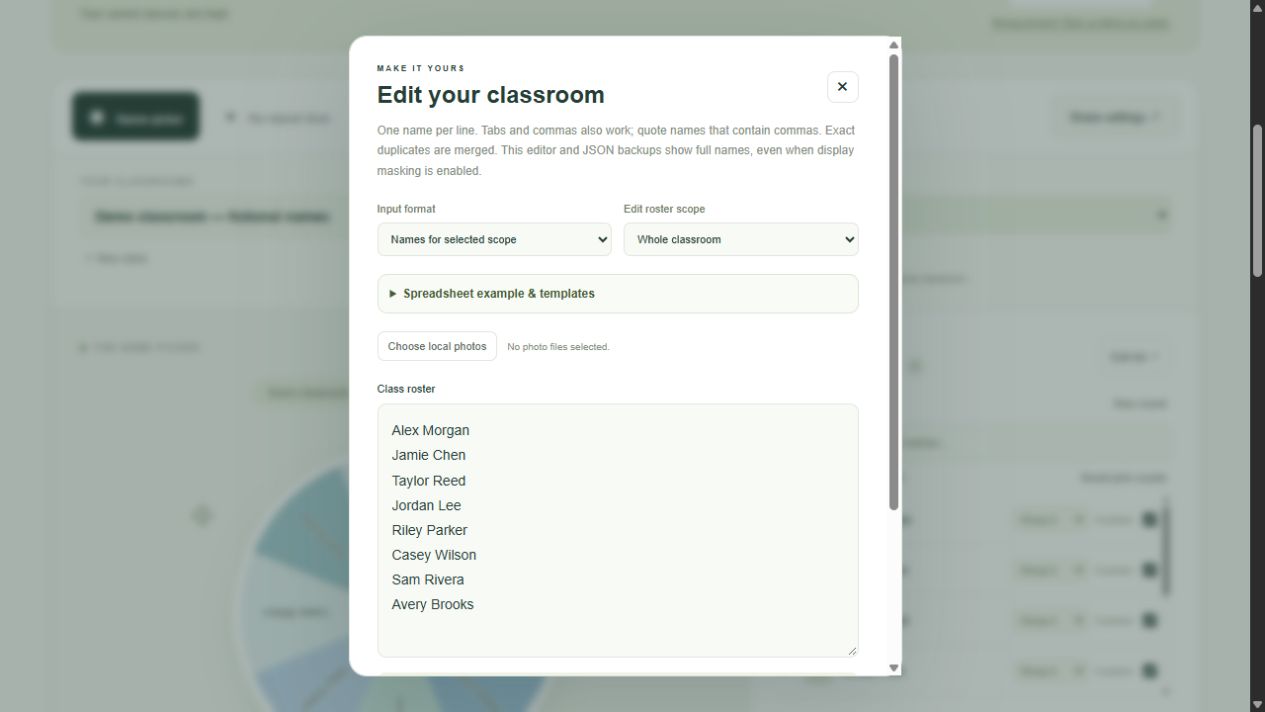
For a batch import, use Name, Group, and Photo filename columns. Put a local filename such as alex.jpg in the optional photo column. Choose the matching local images in the editor, then inspect the import preview before saving. The filename must match an image you selected; placing a photo inside an Excel cell does not import that image.
Remote image URLs are not loaded. This prevents a roster from silently making requests to a collection of external photo hosts. A missing match falls back to the default badge instead of blocking the roster. Keep the photo column empty when you do not need images. The supported roster formats are text and CSV, not native XLSX workbooks.
04 Back up before moving to a new address
On the old workspace address, open Edit list and choose Back up all classrooms. Keep that JSON file until you have checked the restored workspace. It contains all classrooms, fixed groups, photos, settings, response totals, recent history, rounds, teams, and available undo state. It also contains full names, so treat the file as classroom information rather than a harmless settings link.
Open the new workspace in your intended browser profile. Choose Edit list, then Import .json / .txt / .csv and select the JSON backup. Read the replacement confirmation: restoring a full backup replaces the workspace on the destination browser, so download a backup there first if it contains anything you need. Compare classroom count, roster totals, groups, and student summaries after restoring. Open an avatar to check a photo and inspect the wheel settings too.
05 Distinguish portable preferences from portable records
Share settings creates a link containing a small set of tool preferences, not a classroom backup. Names, results, rosters, images, and records are excluded. Custom image data and device voice selections are kept out of these links as well. A recipient must choose to apply the shared preferences. Their local school badge, wheel appearance, and voice setup are retained.
Voice announcements are optional and use only voices the browser reports as local. The available choices vary by operating system and language installation. A voice chosen on one computer may be unavailable after restoring on another, so open Wheel & voice studio and preview the selection again. The on-screen result remains the authoritative visible name if speech is unavailable.
If a save warning appears, download a fresh backup before closing the page. Large photo collections can exceed browser storage limits even after resizing. Try fewer images, a smaller shared badge, or a browser profile with available storage. A backup only helps if you can find and restore it, so keep a dated copy in an approved location and periodically verify that it opens.