
OUTDOOR ACTIVITIES / PRACTICAL GUIDE
Outdoor Activities: a teacher’s step-by-step guide
Run a 30-player activity from roster setup and balanced team cards to points, match results, fixtures, five-second hand duels, sound, and backups.
YOUR FIRST 30-PLAYER ACTIVITY
Start here: six steps before the whistle.
- Create: New activity → enter a title → Save name.
- Add players: Use a saved classroom → choose class and scope → Copy included participants, or paste names in Edit participants.
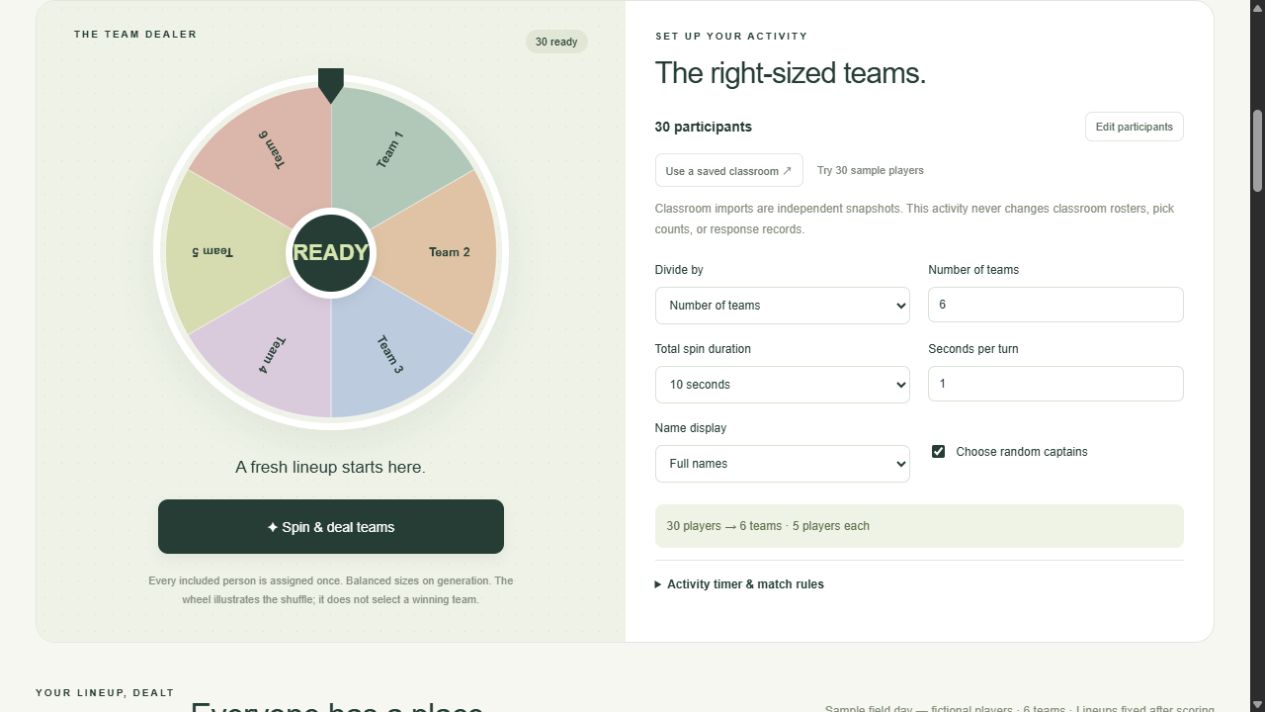
- Deal: Number of teams = 6 → check “30 players → 6 teams · 5 players each” → Spin & deal teams.
- Check: rename teams, select captains, and make any manual moves before scoring.
- Play: add activity points for challenges, or generate fixtures and record match scores. Use Decide first turn on a fixture for a five-second hand duel.
- Keep it: Export CSV for a report; Back up activities for a complete, restorable outdoor workspace.
Practice with the clearly labeled fictional sample first. Choose New activity for your own roster.
01 Create an activity for your class
Open Outdoor Activities from the homepage or top menu. The initial Demo field day — fictional players is a demonstration with 30 fictional names. Try demo opens a separate practice activity and keeps your saved activities. Start with my own roster creates an empty activity and opens its participant editor. Demo scores begin empty, and Reset demo clears only that demo after confirmation. For a real event, choose New activity, type a clear title such as Tuesday sports, and choose Save name. A new activity starts empty; it does not automatically copy the sample or your current classroom.
Use the Activity menu to switch between up to 10 saved activities. A useful routine is one activity for each event whose lineup and scores you want to keep. Renaming an activity changes its title, not its roster or results. Before deleting an activity, download Back up activities if you may need its records later.
02 Bring in the correct participants
For a roster already in Calling You, choose Use a saved classroom. Select the classroom, then Whole classroom, Ungrouped, or a named fixed group. Check the included-participant count, then choose Copy included participants. Only students checked as included in that classroom scope are copied. The activity carries over names, original player numbers, available portrait thumbnails, the school badge, and the classroom’s name-display preference.
This is an independent snapshot. Outdoor scores do not alter classroom participation records, and later classroom edits do not change the activity. Saved classroom data must be in this website origin and browser profile. If it is missing, open Classroom tools at the same address and save the roster there first. Changing domains or devices requires a backup and restore.
For a list you have not set up in Classroom tools, choose Edit participants, put one name on each line, and choose Save participants. Use 1–200 unique names, each up to 80 characters. Commas and tabs also separate names, so quote a name that contains a comma. For spreadsheet columns such as Group and Photo filename, import the CSV in Classroom tools first and copy its roster. Outdoor Restore backup is not a spreadsheet importer.
03 Choose team count or maximum size, then spin
For 30 participants in six teams, set Divide by to Number of teams and enter 6. The preview should say “30 players → 6 teams · 5 players each.” To limit each team to six people instead, select Maximum players per team and enter 6; that produces five teams of six. Always read the preview before spinning.
Choose Total spin duration: 10, 15, 20, or 30 seconds. Seconds per turn is separate: the default is one second per turn, with 0.5–3 supported. A smaller value spins faster. Leave Choose random captains checked if you want one automatically selected captain per team.
Choose Spin & deal teams. Wait for the central countdown to finish; every participant is assigned once, and the player cards appear below. Generated headcounts differ by at most one when division is uneven. For 31 people in six teams, one team has six people and the others have five. Assignment uses browser cryptographic randomness and balances headcounts, not skill or other characteristics. The team under the wheel pointer is not the activity’s winning team.
04 Check the cards before scoring
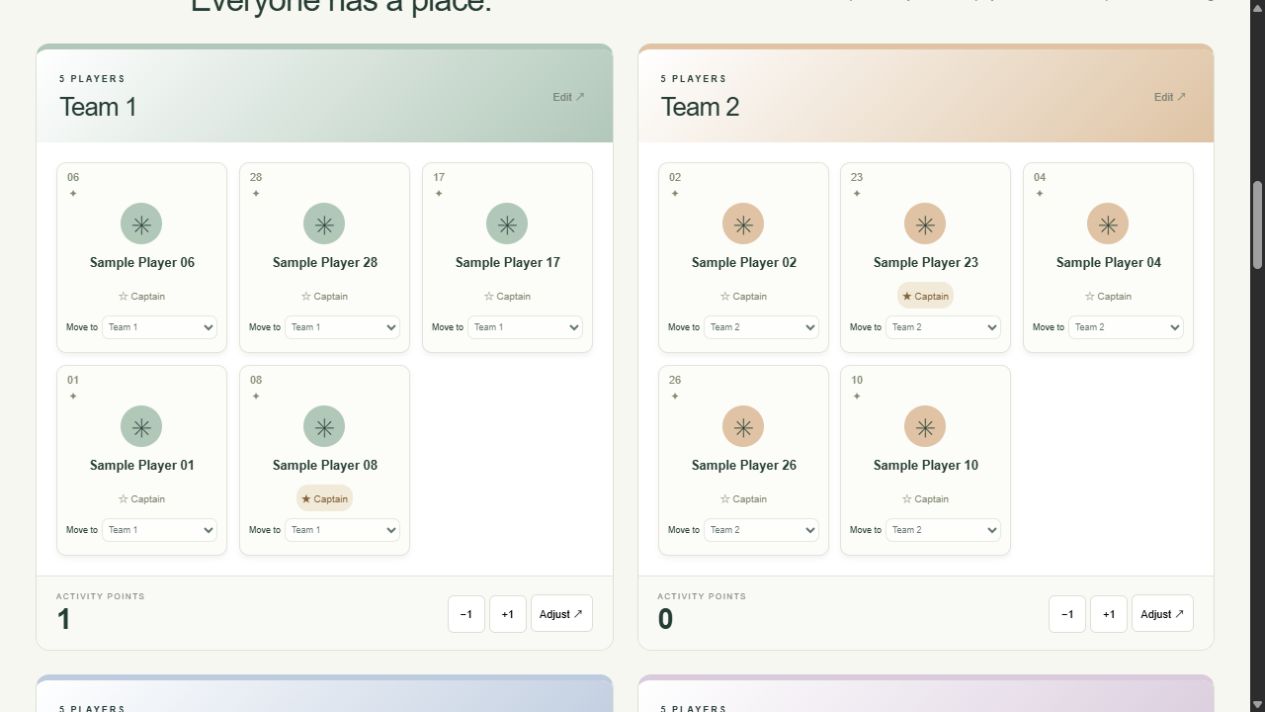
Use Edit beside a team title to rename it, for example Cedar, Maple, or Team 1. A card’s Captain button assigns that player, replaces an existing captain, or removes the captain designation. Before scoring, use Move to on a player card for a manual team change. Every team must retain at least one person.
Moving cards can make sizes uneven and clears unplayed fixtures, including their starting-team decisions. Finish these adjustments before you generate a schedule. Redealing also replaces the existing lineup and unplayed fixtures after confirmation.
Once an activity has a point adjustment or a played match, roster replacement, redealing, and team moves are blocked to keep scores attached to their original lineup. Create a new activity and import or paste its participants again for a new competition. You can still rename teams or change captains. Name display can show Full names, Initials, or Player numbers; masked modes hide individual portraits. Editors and full JSON backups still contain original names.
05 Use activity points for challenges, stations, and penalties
For a relay station, cooperation bonus, or quick challenge, use the controls beneath the relevant team’s cards. +1 adds one activity point and −1 subtracts one. Choose Adjust for a custom change: enter a nonzero whole number from −999 to 999, add an optional reason such as Relay station, then choose Save adjustment.
Example: Team 1 earns a +5 station bonus and later receives a −2 penalty. Its activity total is 3. Those entries appear in Point adjustments with their times and reasons. This does not create a match, a match win, or league points.
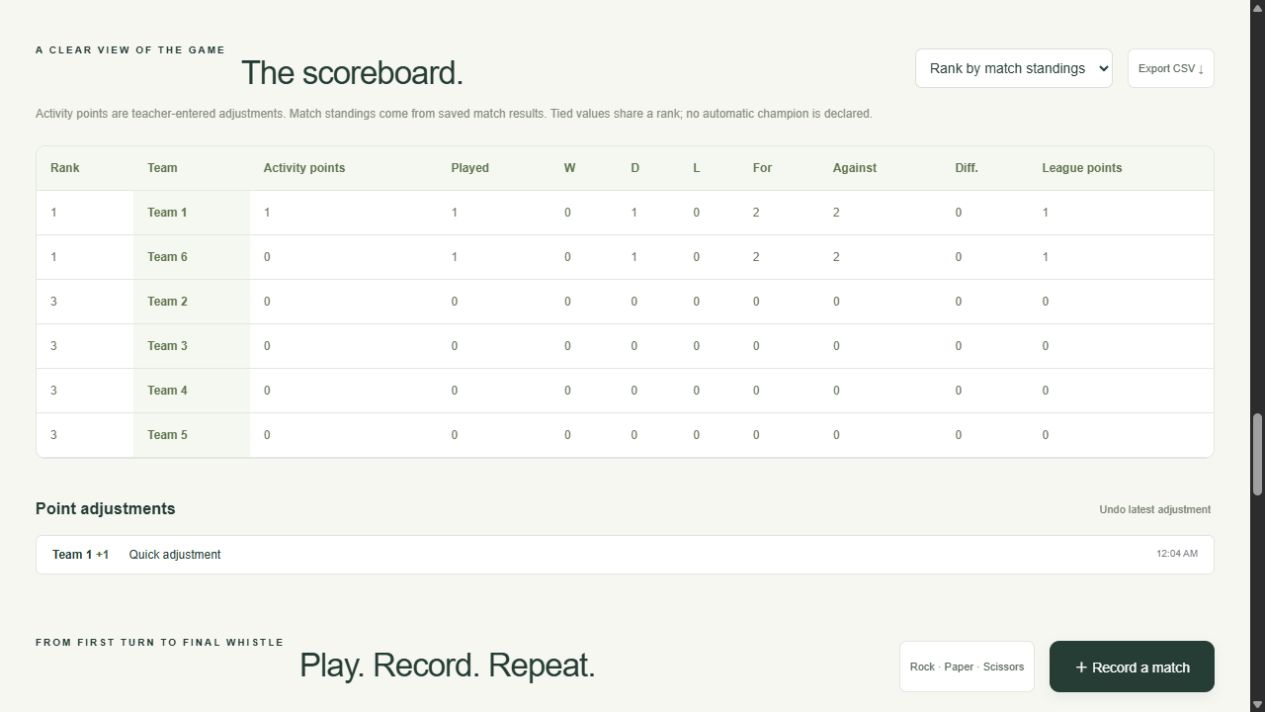
Undo latest adjustment removes only the last point entry across the whole activity, after a confirmation naming the team and amount. For an older error, add a compensating opposite adjustment with a clear reason, then the corrected value. The page shows the latest 50 point entries; CSV contains all saved entries. Choose Rank by activity points to rank this kind of event.
| If you want to… | Use… | What it changes |
|---|---|---|
| Award a station bonus or penalty | +1, −1, or Adjust | Activity points and the point ledger |
| Record a game’s score and winner | Record result / Record a match | Played, W/D/L, For/Against, and league points |
| Decide which team starts | Decide first turn → hand duel → Save as starting team | The fixture’s starting-team label only |
06 Record a game score and understand the standings
For two teams playing a match, choose Record a match, select two different teams, enter Team A score and Team B score, and choose Save match result. If a fixture already exists, choose its Record result button instead; its opponents are fixed. Scores are whole numbers from 0 to 9999. A higher score wins and equal scores create a draw.
Under the default rules, a 3–1 result gives Team A one played game, one win, three For, one Against, and three league points. Team B gets one played game and one loss. Neither team receives activity points automatically. Keep activity-point adjustments and match results separate unless you intentionally run both competitions.
To correct that game, choose Edit result, change it to 2–2, and save. The previous win/loss is replaced by a draw for each team, not added as a second match. Each team then has one played game and one league point under the default rules. Removing a fixture/result removes its standings contribution and any saved first-turn decision.
Choose Rank by match standings for league ranking. It sorts by league points, then score difference (For minus Against), then For. Teams tied on all those values share a rank; no automatic champion is declared. To change the point system, open Activity timer & match rules, set Win, Draw, and Loss, and choose Apply match rules. Existing matches recalculate under the new rules.
| Team A’s record | Original 3–1 win | Corrected 2–2 draw |
|---|---|---|
| Played | 1 | 1 |
| Wins / draws / losses | 1 / 0 / 0 | 0 / 1 / 0 |
| For / against | 3 / 1 | 2 / 2 |
| League points | 3 | 1 |
| Activity points | Unchanged | Unchanged |
07 Generate a schedule after the lineup is final
Choose Generate round-robin fixtures when you want every pair of teams to meet once. Six teams create 15 matches across five rounds, with three matches in each round. Odd team counts rotate a bye: a team sits out while other teams play, without adding a dummy participant.
Use each fixture’s Record result button after that game. An unplayed schedule can be regenerated after confirmation, replacing its fixtures and first-turn decisions. Once a match has been scored, a full new schedule cannot replace it. Keep your results and add a friendly match, or start a new activity for a new event. This schedule is a single round robin, not an automatic knockout tournament.
08 Use the five-second hand duel to decide who starts
Choose the large Play Rock · Paper · Scissors entry near the top of the activity. Before dealing teams, it works as a quick Team A / Team B decider. After dealing, choose your actual team names. For a scheduled match, choose Decide first turn on that fixture to lock the correct opponents.
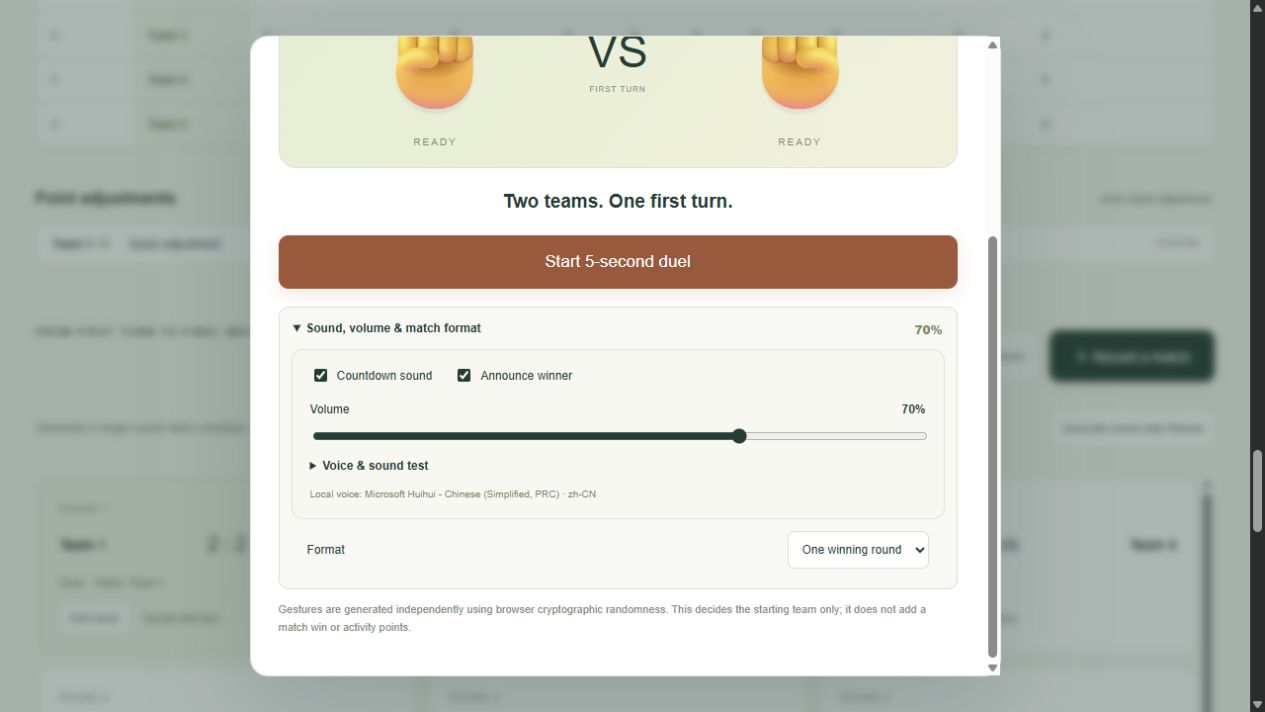
Click Start 5-second duel. The two hands change while the central countdown runs from five. After five seconds the gestures freeze: rock beats scissors, scissors beat paper, and paper beats rock. Both gestures are independently generated using browser cryptographic randomness. Captains do not enter secret gestures. A tie gives neither side a winning round; choose Tie — play again.
For a longer decider, expand Sound, volume & match format below the start button before playing. Choose One winning round, Best of three, or Best of five under Format. Best of three needs two winning rounds; best of five needs three. Ties do not count. Use Next 5-second round until an overall winner appears. Close and reopen to abandon a series or change locked opponents/format.
When opened from a fixture, choose Save as starting team after the overall winner appears. The fixture then shows “Starts: Team 1” or the chosen name. A free-standing duel has no fixture to update, so it does not offer that save button. Winning this decider is not a match win and never adds activity or league points.
09 Set the countdown sound, spoken result, and volume
Expand Sound, volume & match format below the duel button. Countdown sound enables five short tones, one per second, and the result cue. Announce winner enables the spoken winning-team or tie message. Volume controls both from 0 to 100%; zero mutes them. These settings save automatically for this activity, without another Save button, and are included in its outdoor backup.
Open Voice & sound test within those settings for Device voice, Test sound & voice, and Stop audio. The test deliberately previews both sound and speech even if the automatic options are off. Only voices the browser reports as local are listed and used. An unavailable saved voice can be replaced by another local choice.
If there is no sound, raise the website volume, enable the relevant option, check system volume, mute switches, speaker/Bluetooth routing, and the site’s playback permission, then use Test sound & voice. Local voice availability and pronunciation depend on the device. The visible result still works if speech is unavailable. Closing the duel stops its current animation and audio; hiding the page stops pending audio without replaying missed tones later.
10 Use the timer and share a readable lineup
For a station timer, open Activity timer & match rules in setup. Enter Timer seconds from 5 to 3600, choose Reset to apply that duration, and choose Start timer. Pause keeps the remaining time. Reset applies the entered duration again. At zero the page shows Time is up and a visual notice; this timer does not promise an audible alarm. It is separate from the team wheel and hand-duel countdowns.
Print cards opens the browser’s print dialog for the current team/player sheets. Review Name display before printing. Present switches the page into a larger, simpler layout; click it again or press Escape to exit. It does not automatically trigger operating-system fullscreen. The saved timer uses an elapsed-clock deadline, so returning to a running timer reconciles the remaining time.
11 Save the right backup before leaving
Changes save on this browser when storage is available. Choose Back up activities to download the full outdoor JSON file. It contains all outdoor activities, original names, copied images, teams, captains, point entries, fixtures, rules, timers, and sound preferences. Treat it as classroom information. Restore backup replaces all outdoor activities on the destination browser after confirmation, so back up the destination first if it contains work you need. Outdoor backup input is limited to 30 MB.
Classroom backups and outdoor backups are separate. Restoring one does not restore the other’s data. Export CSV produces a report for the selected activity: standings, team membership, fixtures/results, saved starting teams, and point ledger, using the current Name display. CSV cannot rebuild the whole workspace.
Records are tied to the website origin and browser profile. Changing a device, profile, or domain needs an explicit backup and restore; there is no cloud sync or live sharing across phones. Up to 10 activities, 200 participants and 12 teams per activity, 500 matches, and 2000 point adjustments per activity are supported. If a local-save warning appears, download a backup before closing.
Common problems & quick fixes
“I expected six teams, but got five.”
Check Divide by. For 30 players, Number of teams = 6 creates six teams; Maximum players per team = 6 creates five teams. Read the preview.
“I cannot move a card.”
The activity has scores, or the move would empty a team. Keep the scored activity; create a new one for a different lineup.
“My win did not add activity points.”
That is expected: match league points and activity adjustments are separate. Choose the appropriate ranking method.
“There is no Save as starting team button.”
Open the duel from a fixture’s Decide first turn, and finish the overall decider. A free-standing quick duel has no fixture to save into.
“The hands move, but I hear nothing.”
Open Sound, volume & match format, raise Volume, enable the needed options, and use Test sound & voice. Check system mute and local voice availability.
“My backup does not appear.”
Use an outdoor JSON file in Restore backup. Classroom JSON backups and CSV reports are different files and cannot restore outdoor activities.
Need more detail? Jump to setup and team-card FAQ, points and match FAQ, or hand-duel and sound FAQ.